
Kern edits the text that is already inside a PDF, using the document's own fonts, and tells you exactly what it could and could not do. Everything happens on your device — nothing is ever uploaded.
Next to the page arrows are -, a percentage, and +. They change how big the page looks on your screen and nothing else — the document is untouched. Clicking the percentage opens a short menu with the usual sizes and two fits: whole page and page width.
Holding Ctrl and scrolling over the page zooms it too, centred on wherever the pointer is — so the thing you are pointing at stays where it is instead of sliding off the screen. A pinch on a trackpad does the same. Scrolling without Ctrl still scrolls the page, and Ctrl and the wheel anywhere outside the page is still your browser's own zoom.
A fit stays on. If you rotate a page, or resize the window, it re-fits itself rather than leaving you to press the button again — which is the point, because rotating a portrait page is exactly what makes it wider than the window. Choosing a size by hand switches the fit off, because you have just said what you want instead.
Click any text on the page and type. There is no mode to enter first.
Kern writes your change back using the document's own font. When that font is missing a character you typed — which is common, because fonts inside PDFs are usually cut down to only the characters the document already uses — Kern will not silently swap the typeface. It leaves the original text alone and says so in the Changes list.
Then it offers you a way through. The Changes list shows a button naming a face that can write what you typed: one the document already contains if there is one, which costs nothing and is type the author chose — otherwise one of Kern's own, and the list then says plainly that a typeface was added to your file. Either way it is your decision, it is recorded, and you can take it back. Nothing is ever swapped without you saying so.
Occasionally there is no button, because nothing available can draw the character at all — a Chinese glyph, say. Then the refusal is the whole answer, and Kern says that rather than offering something that would fail.

Click a line — or drag a box around several — and a small strip appears underneath it with Colour, Size and Font. The words do not change; only their appearance does.
Making text bigger is the one that has consequences, so Kern tells you before you commit. Text in a PDF has no reserved space around it — a line is just letters at a position — so a bigger line does not push anything aside. It simply reaches further, and may end up on top of whatever is beside it. The strip says how much wider it will be, names anything it would land on, and warns when the new size no longer fits between the lines.
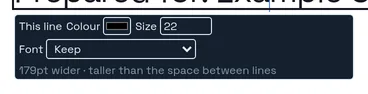
The font list has two halves, and the difference matters.
A font can only be used for characters it actually contains. If the one you pick has no glyph for something on the line, Kern names the character and leaves the line alone.
Ctrl+F, or the Find button. Type what to look for and what to put in its place, and Kern sweeps the whole document.
Three numbers, kept apart on purpose:
A whole-document sweep reads every page, so on a long file it takes a moment. The button counts the pages off while it works.
Pick a tool from the toolbar, then work on the page.
Anything you add is drawn on the page straight away, by the same machinery that will write the file — so what you see is what you get, not a preview of it.
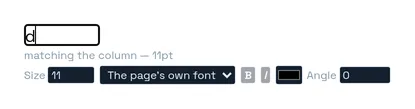
If Kern spots a ruled line under your click, it says "matching this form line", puts the text on the line rather than through it, and Enter then behaves like a form field: it finishes the answer instead of starting a new paragraph. In open space Enter makes a new line, as it does in any other editor. The label tells you which you are in before you start.
The caret snaps to real features of the page — baselines, column edges, ruled lines. Hold Shift or Alt while clicking to put it exactly where the pointer is instead.
When a page has no text in it, Kern says so and offers to read the words on this page. It recognises them on your device — the recogniser and its language data are part of Kern, and nothing is sent anywhere — and writes what it read into the page as an invisible layer sitting exactly on top of the picture.
The page looks identical. Find works, selecting works, copying works, and so do they in any other PDF reader, because this is how scanned documents have carried their text for twenty years.
Press Sign and write your name in the box with a mouse, a finger or a pen. Then put it on the page in whichever of two ways suits you. Click where it goes and it lands at a sensible size. Or drag a box and it lands at the size of the box — the signature shows inside the box as you drag, so you can match it to the line you are signing before you let go. Either way it is placed as a picture, cropped to what you actually drew, and it appears in the Changes list like anything else you add.
Once it is down it is selected, with a box round it and a square at each corner. Drag a corner to resize it, or drag the middle to move it. It keeps its shape whatever you do to the corners. Click anywhere else on the page, or press Esc, to let go of it; click it again to pick it back up. With it selected the arrow keys nudge it a point at a time, Shift and an arrow move it further, and + and − resize it.
The Changes list also shows how wide it is in centimetres, with Smaller and Bigger beside it — the same thing the corners do, for anyone not using a mouse, and they go on working when the picture has been scrolled out of sight. Those buttons grow and shrink it from its bottom-left corner, so it stays on the line it was put on. All of this works for any image you place, not only a signature.
Your signature is kept on your device so you do not have to draw it again next time — in the same place your licence key lives, which is nowhere your document ever goes. There is a button to forget it.
Highlight drags over text to mark it. This is a real PDF annotation — the kind other readers understand, and the kind you can take off again. It is see-through, so the words stay readable.
Kern reads its own work back afterwards and checks. If anything is still readable it will tell you, by name, and say not to treat it as redacted. Page content is what Kern reaches — a PDF can also hold text in its metadata, bookmarks or attachments, which is exactly why it checks rather than promises.
The Pages menu holds everything that changes the sheets themselves.
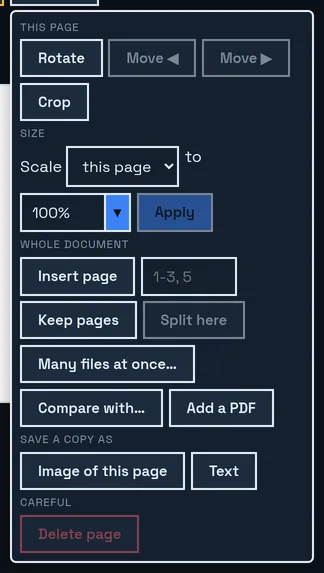
1-3, 5 to keep only those and discard the rest.The All pages menu adds something repeated across the document. Each page is laid out from its own size, so a mix of portrait and landscape sheets still lines up.
For page numbers and headers, write {n} where the page number goes and
{N} for the total — so Page {n} of {N} reads "Page 3 of 12". A
watermark sits behind the page and faint by default, so the document stays readable through it.
Open a PDF, then find Replace a phrase in many files in the Pages menu. Choose as many PDFs as you like, say what to find and what to put in its place, and Kern works through them one at a time on your device.
It is deliberately not offered before you have opened anything. Replacing a phrase across files you have never looked at means assuming Kern can read them and that the replacement will take — and being told which ones it could not, once the export has already been spent, is not the same as knowing first. Open one, watch it work, then do the rest.
What comes back is a row for every file, not just a count: how many occurrences each one took, which ones did not contain the phrase at all, which lines could not be changed and why, and which files could not be read. A file that is damaged or encrypted is named — the run does not stop, and it does not quietly leave that file out of a total.
Your originals are never touched. The changed copies come back as one zip, and only the files that actually changed are in it. Saving them counts as one export, however many files the run held — and the panel says so before you start, not after.
Nothing is written until you press Export. Before it saves, Kern shows a summary of every change it is about to make, and says that the rest of the document is untouched — which is true, because Kern adds to the original file rather than rebuilding it.
The one exception is redaction, which has to rewrite the file completely. Keeping the original bytes is precisely how redacted text leaks back out.
Exported files are packed the way modern PDFs are, so they come out smaller than the original in most cases — a 194-page document loses about a third of its size, with nothing removed from it. The exception is a redaction, which is written out in the open so Kern can read it back and check the words are really gone.
Ctrl+Z takes back the last change, including page operations. Ctrl+Shift+Z or Ctrl+Y puts it back — whichever one you are used to. While you are typing in a piece of text, undo belongs to the text box, as you would expect.
Press ? at any time for this list inside the app.
On a Mac, press ⌘ wherever this list says Ctrl. The list inside the app shows whichever your machine actually uses.
Every one of these is something Kern declines to do badly. A tool that quietly cannot do what you came for wastes your afternoon; one that says so up front costs you ten seconds.
Kern would rather refuse than guess. A control that has gone grey explains itself if you hover over it, and anything Kern declined to do is listed under Changes with the reason. Those messages are meant to be read — they are usually telling you something true about the document, not about Kern.